Enable Password Expiration Preference
You can set the password expiration preference so that user passwords will expire after the number of days specified. Once a user's password has been the same for the number of days specified, the next time the user logs into the system, they will be required to change their password.
Here's how:
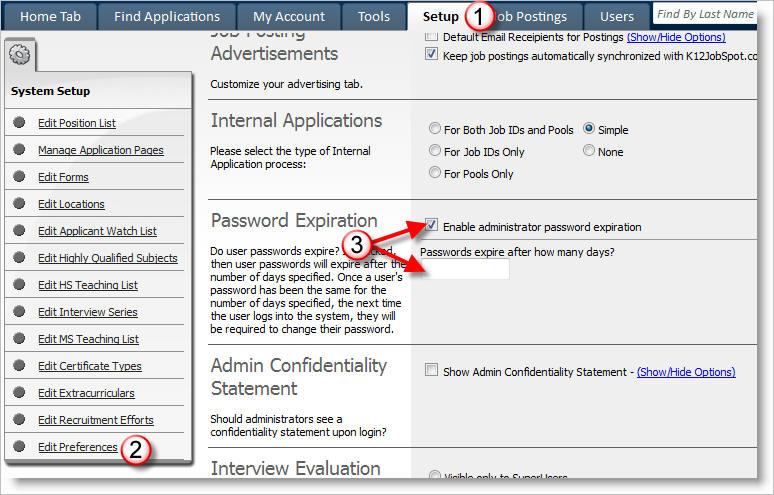
1) Click on the Setup tab.
2) Click on Edit Preferences.
3) Click the Enable Password Expiration checkbox and enter the number of days (such as 30 or 90) until the passwords will expire and which will require the users to change their passwords on their next login.
4) Click on Save Preferences.
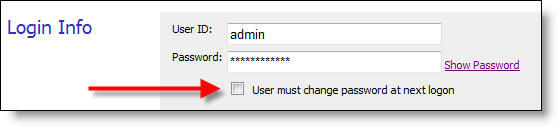
Additionally, you can force a user to change their password upon their next login.
Simply edit a user's record and check the "User must change password at next logon" checkbox.
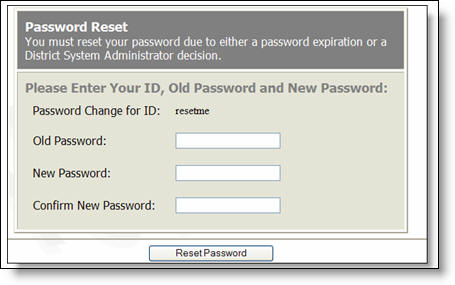
5) When a user's password expires they will receive the message shown below which prompts the user to change/reset the password upon their next logon.